
The maxamind app is a comprehensive toolkit to enhance personal and professional productivity while reducing stress and wasted energy. maxamind is Augmented Intelligence on all your devices.
maxamind is a platform independent web application - it runs in your device’s browser. It stores your data on your device, so it can function when you’re offline, and then safely syncs your data with the maxamind.com cloud servers when online again. If you install maxamind on multiple mobile or desktop devices, the cloud services will keep them all in sync as you add or update your data.
To get started, first go to www.maxamind.com on a desktop or mobile device to create your account. Then follow the instructions below for installing the app on any or all of your devices.
To install the app and it’s offline database on an iPhone or iPad:
To install the app and it’s offline database on an Android device:
To install the app and it’s offline database on Chrome or Edge (Mac or Windows):
 in the navigation bar.
Follow those few steps to create a new maxamind Desktop icon. After you complete the process,
it’s helpful to return to the browser and close the app.maxamind.com page. It will avoid confusion the next time you use
the browser.
in the navigation bar.
Follow those few steps to create a new maxamind Desktop icon. After you complete the process,
it’s helpful to return to the browser and close the app.maxamind.com page. It will avoid confusion the next time you use
the browser.To install the app and it’s offline database on an a Mac in Safari:
 in the Safari navigation bar and select
Add to Dock.
Follow those few steps to create a new maxamind dock icon. After you complete the process, it’s helpful to return
to Safari and close the app.maxamind.com page. It will avoid confusion the next time you use Safari.
in the Safari navigation bar and select
Add to Dock.
Follow those few steps to create a new maxamind dock icon. After you complete the process, it’s helpful to return
to Safari and close the app.maxamind.com page. It will avoid confusion the next time you use Safari.The first time you start the maxamind app after installing on your device, it will automatically bring up the Login page. Enter the Email Address and Password that you used when you created your account, along with a unique Device Name of your choice.
Important: If you are installing maxamind on more than one device, be sure to give them each a different Device Name (like: iPhone, Galaxy, Mac) so that the maxamind server can keep them all in sync.
Your email and password will be securely stored on the device so you won’t need to login again each time you run the app.
After you login for the first time and then whenever you open the maxamind app, you will see the Home panel like this:
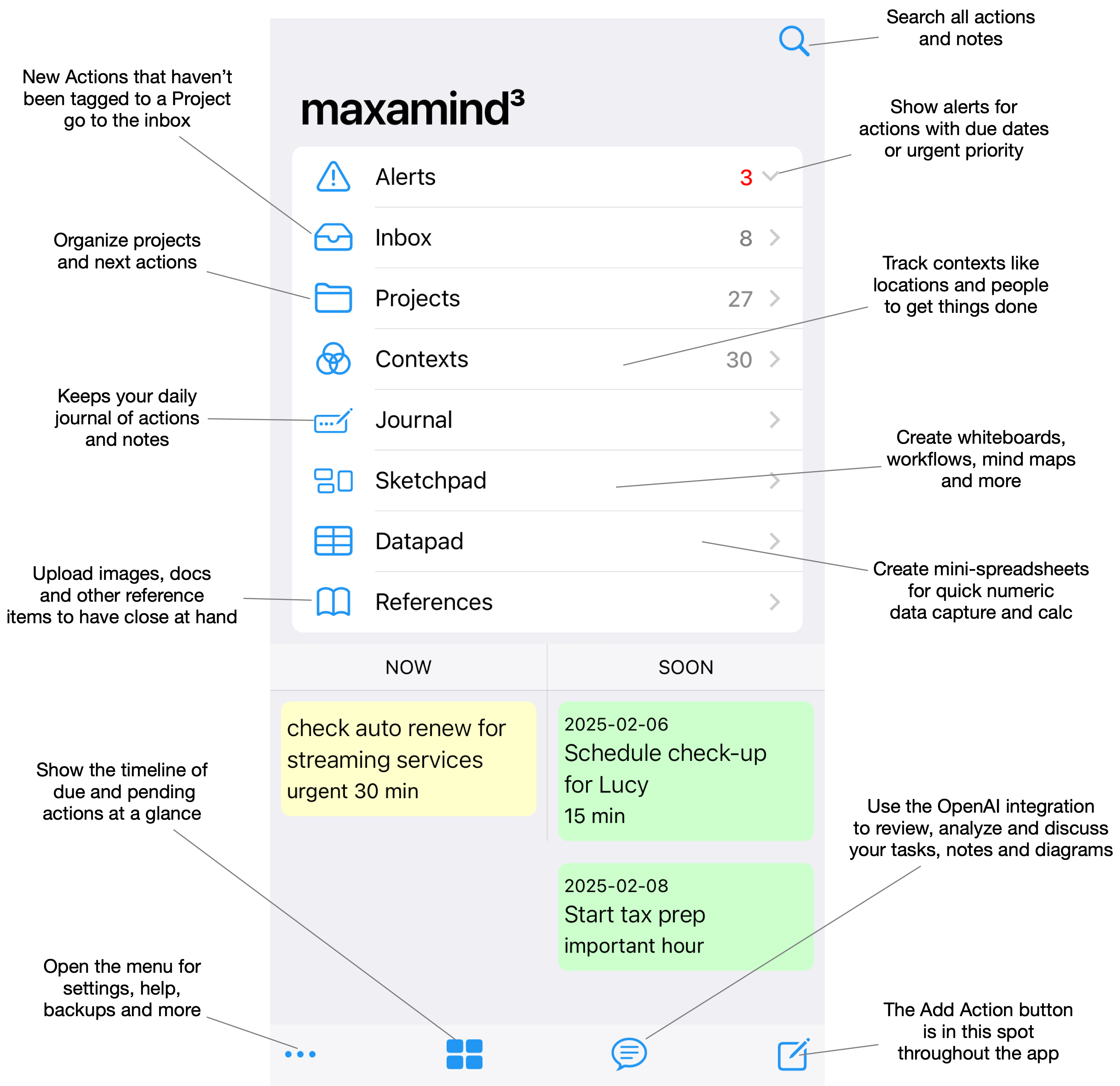
The Home panel as seen on an iPhone.
On Android devices the menu bar is on top. On tablets and desktops,
the home panel slides from the left.
Actions are any task or activity that you need to get done. An action may be a simple “Stop off for milk” or a step along the way in a long-term project with notes, images or links attached. Tap the square_pencil icon on any screen to add a new Action.
square_pencil Every page of the maxamind app has the New Action icon on the toolbar.
Tap New Action from any page and start typing or hit the microphone button to dictate a quick description of the idea, task, reminder – whatever you need to do. If you start from the maxamind Home page, the New Action will default to the Anywhere context and the Inbox project. If you start from a Context or Project page, the context or project will be automatically set to that page. In any case, you can tap the Context or Project to select a different one from the list.
If you want or need to, you can set other options to manage the action including estimates for time, level of effort and priority; a due date if there really is one; a URL to link a web resourse like images or docs; and notes with an outline editor. How much you set at capture time is up to you — minimum captures are fast, full captures save processing later.
So, get started with maxamind by adding actions for tasks and ideas throughout the day. Create Projects and Contexts as you go. Review your Project lists daily and weekly. Check your Context lists for people when you meet with them and places when you're in them.
Every Action item in maxamind is organized by Project and Context. When you first create your maxamind account and repository, a few typical Projects and Contexts are setup automatically. You can add any number of Contexts and Projects to suit your life, work and flow.
Projects are any on-going work, interest or other activity that you will break down into next actions. It's easy to imagine the projects that you are likely working on right now. What are the next actions to take on each of them?
Contexts are the places, people, resources or situations needed to take an action. They are who you need to be with, or where you need to be (home, work, school) or the situation you need to be in (shopping, packing) to get something done. You tag tasks with a context (at home, with Bob, grocery shopping) and then check that context's list when the time comes.
Here are some suggestions to get the ideas flowing:
Here's an example:
You’re watching the evening news at home at 11 PM and you have a great idea that you need to discuss with your boss.
You grab your phone, open maxamind, tap the “Add” button on the toolbar and see the New Action page.
You type the action to discuss the important contract point, tag it with the context Mr. Big, tap High Priority, click Save, put it out of your mind and sleep soundly.
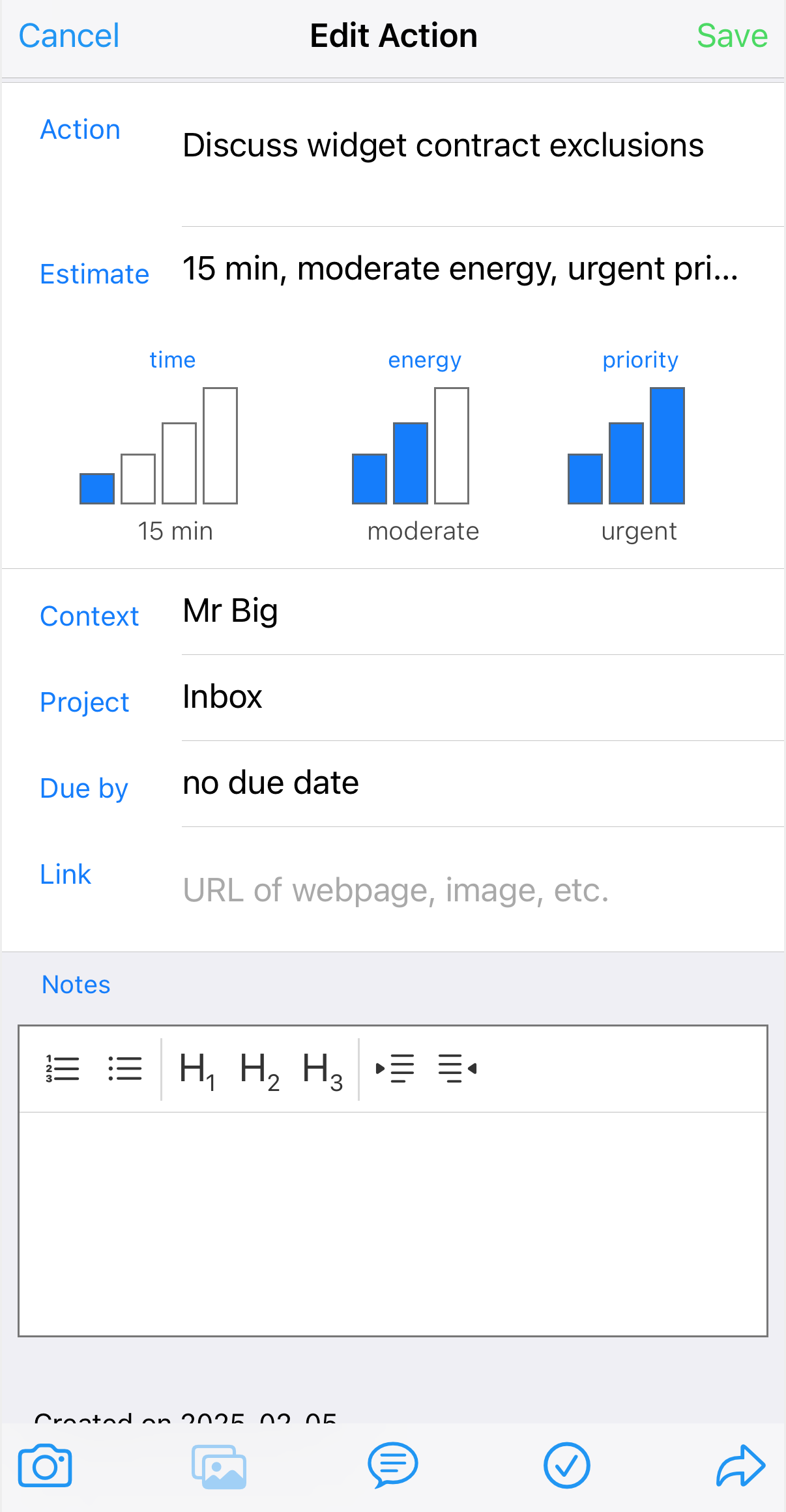
An action marked high-priority and tagged for Mr. Big
The next day, or whenever you next meet with Mr. Big, you open the app, click on Contexts, Mr. Big and go through your list of things to discuss.
You tap View by Priority and there is that important note at the top of the list. You talk, you check-it. Done.
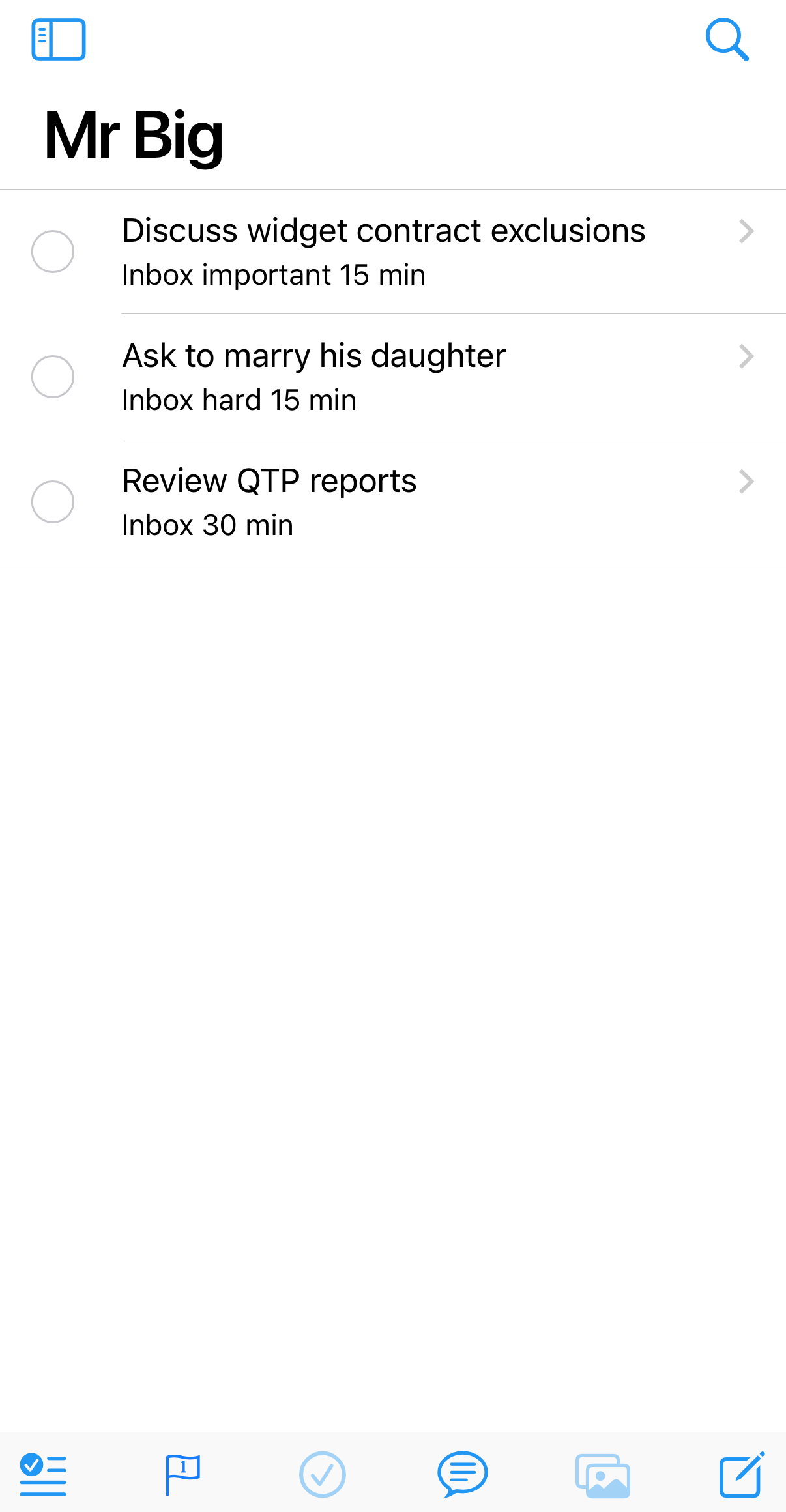
Your Mr. Big list by priority the next time you meet
If you really needed to discuss this with Mr. Big before your next scheduled meeting, you could have set a Due Date when you saved the action.
Actions that have a Due Date show up in the Alerts list on the Home screen when they are nearly due or overdue.
You can tap on the item to get the details or edit it, or check it done right from the alerts.
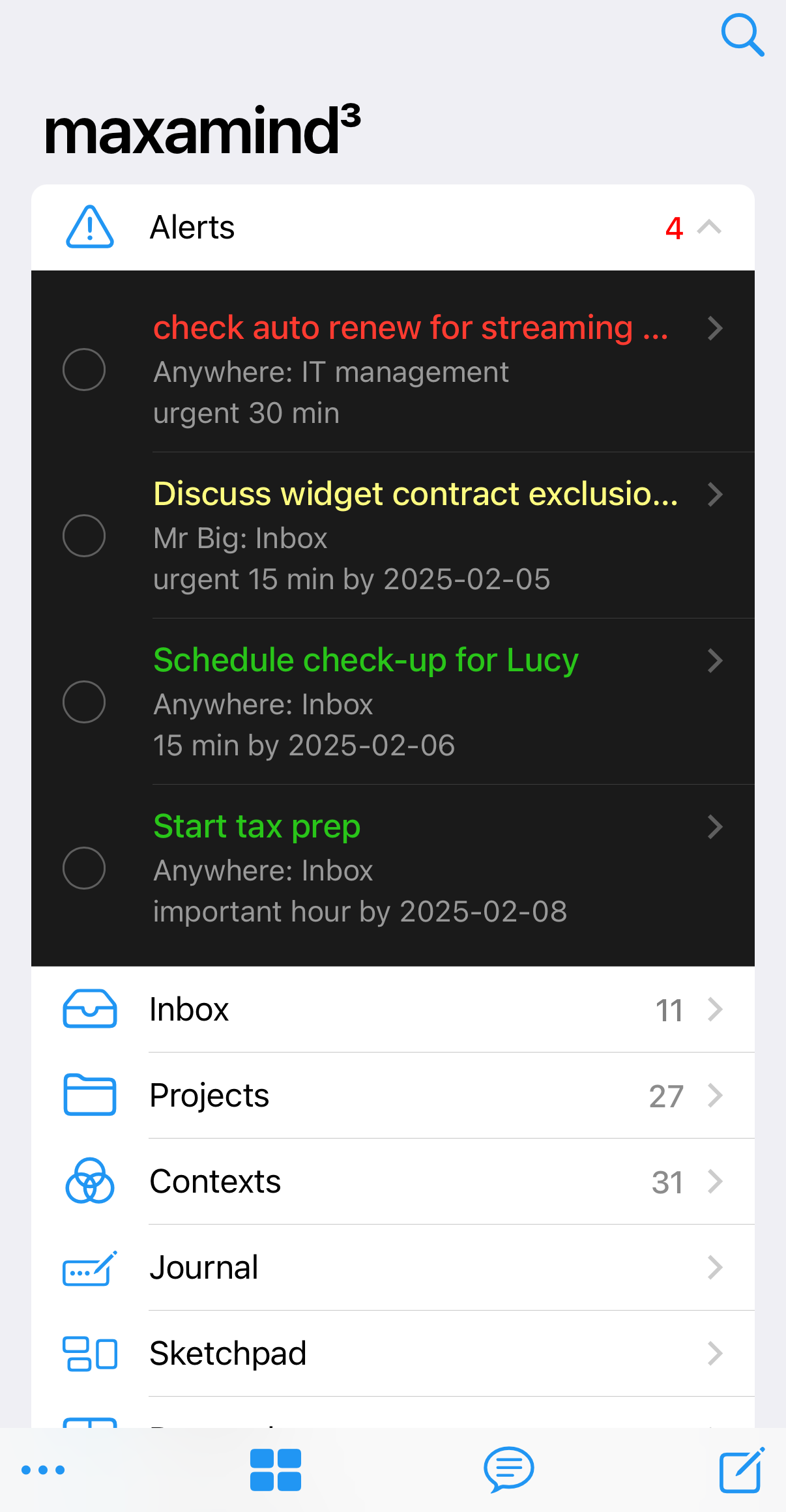
The home screen Alerts list shows color-coded Actions
What you’ve just read through — capturing actions the moment they occur to you, sorting them by project and context, reviewing your lists, checking things off — has a name. It’s called Getting Things Done, or GTD®, and it was developed by productivity consultant David Allen. His book, Getting Things Done, first published in 2001 and read by millions of people over two decades, lays out the full method: five steps — Collect, Process, Organize, Review, and Do — that maxamind is designed around.
Allen’s insight is that most of the stress we feel about our work isn’t caused by the work itself. It’s caused by trying to hold everything in our heads:
Moving it all into a trusted system you can rely on — one that captures, organizes, reminds, and shows you what to do when the time comes — is what lets you relax about what you might be forgetting.
If you want to go deeper, Allen’s book is the definitive source and worth reading. Some subscribers read it before they start, some read it after a few weeks of using the app, some dip into it along the way — all are good ways to learn.
Using maxamind on your phone and all your devices makes collecting a snap. It's always with you, and collecting a new item is never more than two taps away — tap to launch maxamind, if it's not already open, then tap on Quick Action. New Actions default to the Inbox project and Anywhere context, so capture is fast when you just need to get something out of your head.
But you can do more than pure capture. Because you can set a project, context, priority, and notes in the same New Action step, Collect often blends into Process naturally. You're reading email and see a follow-up you need to make — drag it into an action, tag it with the right person's context, mark it high-priority, and save. That's Collect and Process in one motion, while the thinking is fresh.
With everything collected as it happens, take some time during the day to work through anything still sitting in your inbox. Clarify what each item means. Decide if it's actionable and how. Discard the junk. Tag the rest with the right project and context so it lands where you'll find it when you need it. Quick processing keeps the inbox from becoming a pile — and because you've been processing as you collect, there's usually less sitting there than in strict GTD.
You can set the Context or Project for any Action when you add it or change it later by tapping on the Action from any list. When the Project or Context “pick list” is displayed, you can either choose one of the listed items or Add a new one.
Here are some ideas to keep going:
Using maxamind is a proactive process. You need to establish a routine of regular reviews for your projects. Use the app to view your open actions and notes, create a mind-map, or discuss them with the AI Assistant. Create next actions and mark stuff done.
This is where it all pays off. Open maxamind, check your Context list for wherever you are and whoever you're with, and work through the actions there. When you've done something, check it off — it gets marked Done and disappears from view. But it's not gone; completed actions are archived and can be searched or viewed by tapping the View Checked icon checkmark_circle on the Projects, Contexts or Search panel view options menu.
Open maxamind and start capturing. Don’t worry about organizing perfectly or getting every context right — just get what’s on your mind into the app. You can sort and refine as you go. The goal isn’t a pristine system; it’s a trusted one. Every action you capture is one less thing your head has to carry.
maxamind includes a built-in AI Assistant powered by Claude, Anthropic's advanced AI model. The Assistant is included with every maxamind subscription — no API keys or technical setup required.
The Assistant has full context of your current view — your tasks, projects, contexts, and sketches — so you can have a natural conversation about your work. For example:
The Assistant can also create new actions and sketch nodes directly from the conversation. If you ask it to suggest tasks or ideas, just review the suggestions and confirm to add them automatically.
The assistant is also there to help you learn and develop your skills with maxamind. Ask questions about the app or the process - it's read the docs, too!
Tap the chat bubble icon on any page to open the Assistant. The contents of your current view are automatically shared with the Assistant so it has the context it needs to give you relevant, personalized responses. Ask anything or click the quote_bubble button for some pre-rolled queries.
The AI Assistant is powered by Anthropic's Claude API. Conversations are processed securely via Anthropic's API and are subject to their privacy policy. maxamind does not include any personally identifiable information in API calls other than the optional background information you provide in Settings. Your tasks, projects, and notes are sent as context to support your conversation but are not stored or used for training by Anthropic.
The maxamind app expands on the GTD paradigm through views and additional tools to suit your thinking and working styles.
You can use the view tool at the left of the menu bar to select from the available action list visualizations. The icon changes to indicate the selected view as shown in the following list. The app will retain the selected view and sort order on restart, so you can stick with your favorite.
| text_badge_checkmark | Checklist | A list with checkbox, action summary and selectable sort order |
| rectangle_grid_3x2 | Timeline | A now-soon-later timeline with summary and selectable sort order |
| list_bullet | Outline | A bullet-list of actions with their complete notes in an outline editor and selectable sort order |
| rectangle_3_offgrid | Whiteboard | A free-form whiteboard where actions are shown and other shapes can be drawn and connected |
The Journal functions as a centralized repository for recording activities, thoughts, and notes on a daily basis. You can document events, insights, and tasks within the journal, capturing a chronological account of your daily experiences. Bullets within the journal represent various types of entries such as notes, actions, or events, providing a versatile platform for journaling and note-taking. Any actions that you add through the inbox or Projects are automatically journaled. Attachments let you include visual information, web links and multimedia content in journal entries.
The Sketchpad enables visual brainstorming and communications. By collecting actions and notes through the Search Panel, you can brainstorm ideas, create visual representations of concepts, and communicate complex information effectively. The Sketchpad serves as a creative space to ideate, visualize, and collaborate on projects through dynamic visual tools and features within the app.
The Datapad provides a simple yet powerful platform for data collection and spreadsheet functions. You can input and organize data in a tabular format, facilitating data management and analysis within the app. Whether tracking numerical information, creating spreadsheets, tracking expenses or managing project data sets, the Datapad is a versatile tool for handling data-related tasks efficiently. With intuitive functions and formatting options, you can leverage the Datapad for various data-driven activities.
Use the Pocket Reference Library for storing important documents, images, and references that are always with you. You can attach various file types, including images, PDFs, text, and markdown, for quick and easy access within the app. Maybe some handy recipes, charts important to your work, subway maps or travel docs.