maxamind Quickstart Guide
The maxamind app is a comprehensive toolkit to enhance personal and professional productivity while reducing stress and wasted energy. maxamind is Augmented Intelligence on all your devices.
Installation and Setup
maxamind is a platform-independent web application — it runs in your device's browser. It stores your data on your device, so it can function when you're offline, and then safely syncs your data with the maxamind.com cloud servers when you're online again. If you install maxamind on multiple mobile or desktop devices, the cloud services will keep them all in sync as you add or update your data.
To get started, first go to www.maxamind.com on a desktop or mobile device to create your account. Then follow the instructions below for installing the app on any or all of your devices.
Installing on an iPhone or iPad
To install the app and its offline database on an iPhone or iPad:
- Open Safari on the iPhone and navigate to app.maxamind.com.
- The app will load and display instructions for your iPhone or iPad. Follow those few steps to create a new maxamind Home Screen icon. After you complete the process, it's helpful to return to Safari and close the app.maxamind.com page. It will avoid confusion the next time you use Safari.
- You can use and move the maxamind icon just like a regular app icon. Tap it to start the app and go to the Login page.
Installing on an Android phone or tablet
To install the app and its offline database on an Android device:
- Open Chrome on the device and navigate to app.maxamind.com.
- The app will load and display instructions for your Android. Follow those few steps to create a new maxamind Home Screen icon. After you complete the process, it's helpful to return to Chrome and close the app.maxamind.com page. It will avoid confusion the next time you use Chrome.
- You can use and move the maxamind icon just like a regular app icon. Tap it to start the app and go to the Login page.
Installing with Chrome or Edge on a desktop (Mac or Windows)
To install the app and its offline database with Chrome or Edge:
- Open Chrome or Edge on the desktop and navigate to app.maxamind.com.
- The app will load and display the login page — but don't log in yet. Click the Install to Desktop icon
 in the navigation bar. Follow those few steps to create a new maxamind desktop icon. After you complete the process, it's helpful to return to the browser and close the app.maxamind.com page. It will avoid confusion the next time you use the browser.
 - You can use and move the maxamind icon just like a regular app icon. Click it to start the app and go to the Login page.
Installing with Safari on a Mac
To install the app and its offline database on a Mac with Safari:
- Open Safari on the Mac and navigate to app.maxamind.com.
- The app will load and display the login page — but don't log in yet. Click the Share icon
 in the Safari toolbar and select Add to Dock. Follow those few steps to create a new maxamind Dock icon. After you complete the process, it's helpful to return to Safari and close the app.maxamind.com page. It will avoid confusion the next time you use Safari.
 - You can use and move the maxamind icon just like a regular app icon. Click it to start the app and go to the Login page.
First Time Login
The first time you start the maxamind app after installing on your device, it will automatically bring up the Login page. Enter the email address and password that you used when you created your account, along with a unique Device Name of your choice.
Important: If you are installing maxamind on more than one device, be sure to give them each a different Device Name (like: iPhone, Galaxy, Mac) so that the maxamind server can keep them all in sync.
Your email and password will be securely stored on the device so you won't need to log in again each time you run the app.
The maxamind Home Panel
After you log in for the first time, and whenever you open the maxamind app, you will see the Home panel like this:
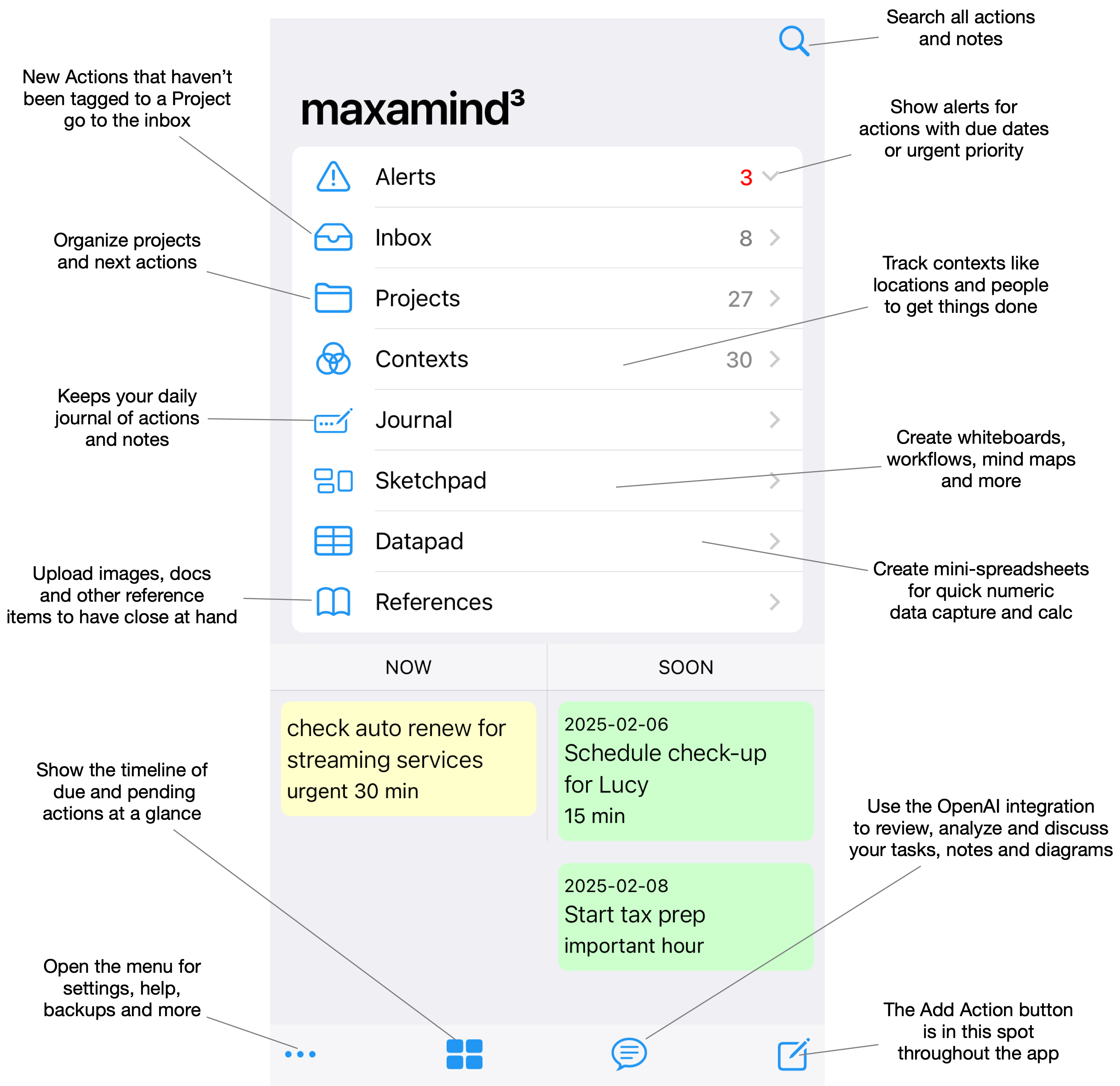
The Home panel as seen on an iPhone. On Android devices the menu bar is on top. On tablets and desktops, the Home panel slides in from the left.
All about Actions!
Actions are any task or activity that you need to get done. An action may be a simple "Stop off for milk" or a step along the way in a long-term project with notes, images or links attached. Tap the square_pencil icon on any screen to add a new Action.
square_pencil Every page of the maxamind app has the New Action icon on the toolbar.
Tap New Action from any page and start typing, or hit the microphone button to dictate a quick description of the idea, task, reminder — whatever you need to do. If you start from the maxamind Home page, the New Action will default to the Anywhere context and the Inbox project. If you start from a Context or Project page, the context or project will be automatically set to that page. In any case, you can tap the Context or Project to select a different one from the list.
If you want or need to, you can set other options to manage the action, including estimates for time, level of effort and priority; a due date if there really is one; a URL to link a web resource like images or docs; and notes with an outline editor. How much you set at capture time is up to you — minimum captures are fast, full captures save processing later.
So, get started with maxamind by adding actions for tasks and ideas throughout the day. Create Projects and Contexts as you go. Review your Project lists daily and weekly. Check your Context lists for people when you meet with them and places when you're in them.
Organizing Actions with Projects and Contexts
Every Action item in maxamind is organized by Project and Context. When you first create your maxamind account and repository, a few typical Projects and Contexts are set up automatically. You can add any number of Contexts and Projects to suit your life, work and flow.
Projects are any ongoing work, interest or other activity that you will break down into next actions. It's easy to imagine the projects that you are likely working on right now. What are the next actions to take on each of them?
Contexts are the places, people, resources or situations needed to take an action. They are who you need to be with, where you need to be (home, work, school) or the situation you need to be in (shopping, packing) to get something done. You tag tasks with a context (at home, with Bob, grocery shopping) and then check that context's list when the time comes.
Here are some suggestions to get the ideas flowing:
- Create Projects for any longer-term work that will require multiple Actions to complete, and review your Projects regularly to identify and track next Actions.
- Create Contexts for the people or groups you work with — your boss, partner, assistant, team members or clients — to track things to do when you are with them or talking to them.
- If you work in more than one location, create a Context for each to tag things to do while you're there.
An example
You're watching the evening news at home at 11 PM and you have a great idea that you need to discuss with your boss.
You grab your phone, open maxamind, tap the New Action button on the toolbar and see the New Action page.
You type the action to discuss the important contract point, tag it with the context Mr. Big, tap High Priority, click Save, put it out of your mind and sleep soundly.
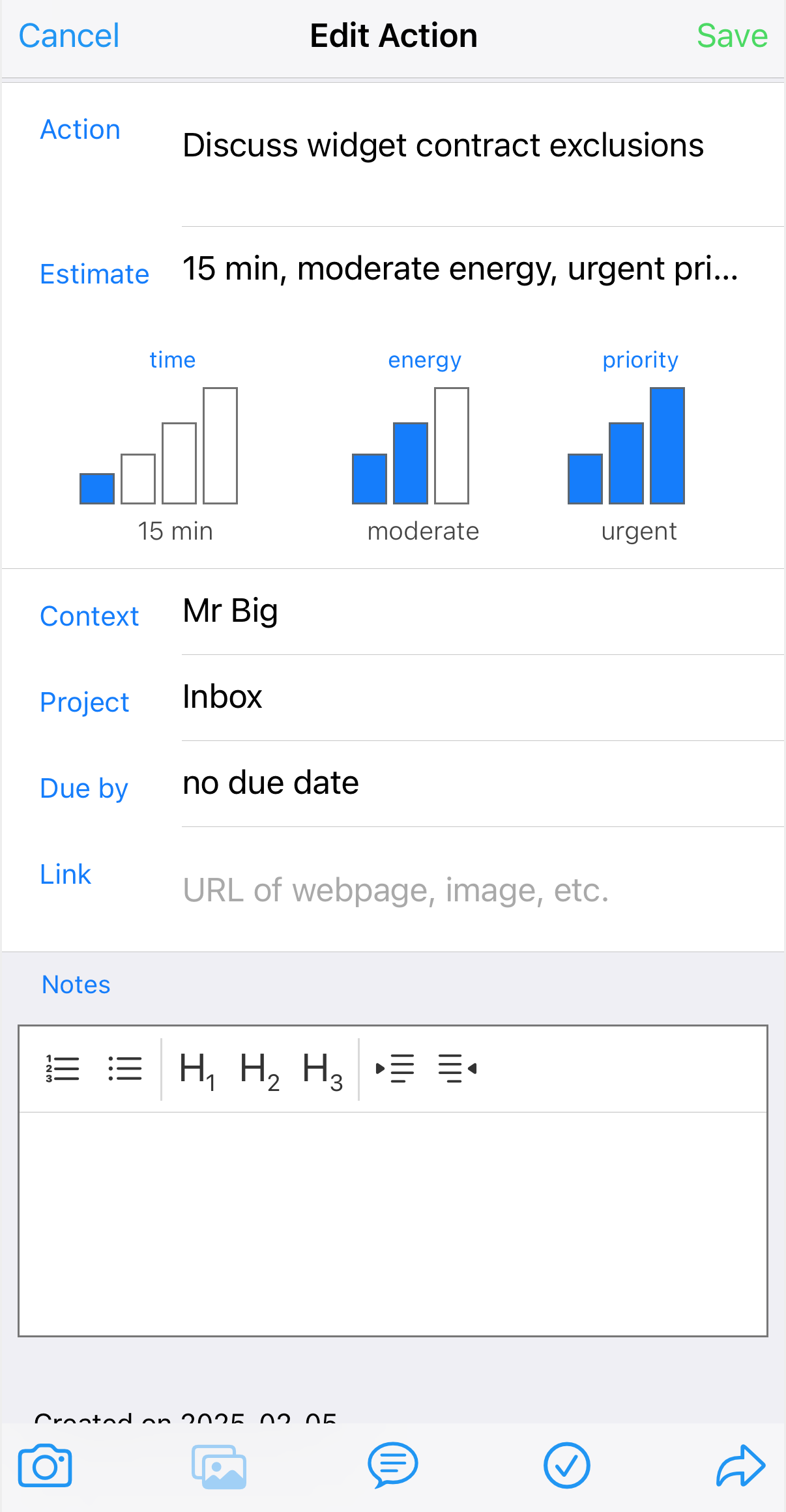
An action marked high-priority and tagged for Mr. Big
The next day, or whenever you next meet with Mr. Big, you open the app, tap Contexts, then Mr. Big, and go through your list of things to discuss.
You tap View by Priority and there is that important note at the top of the list. You talk, you check it off. Done.
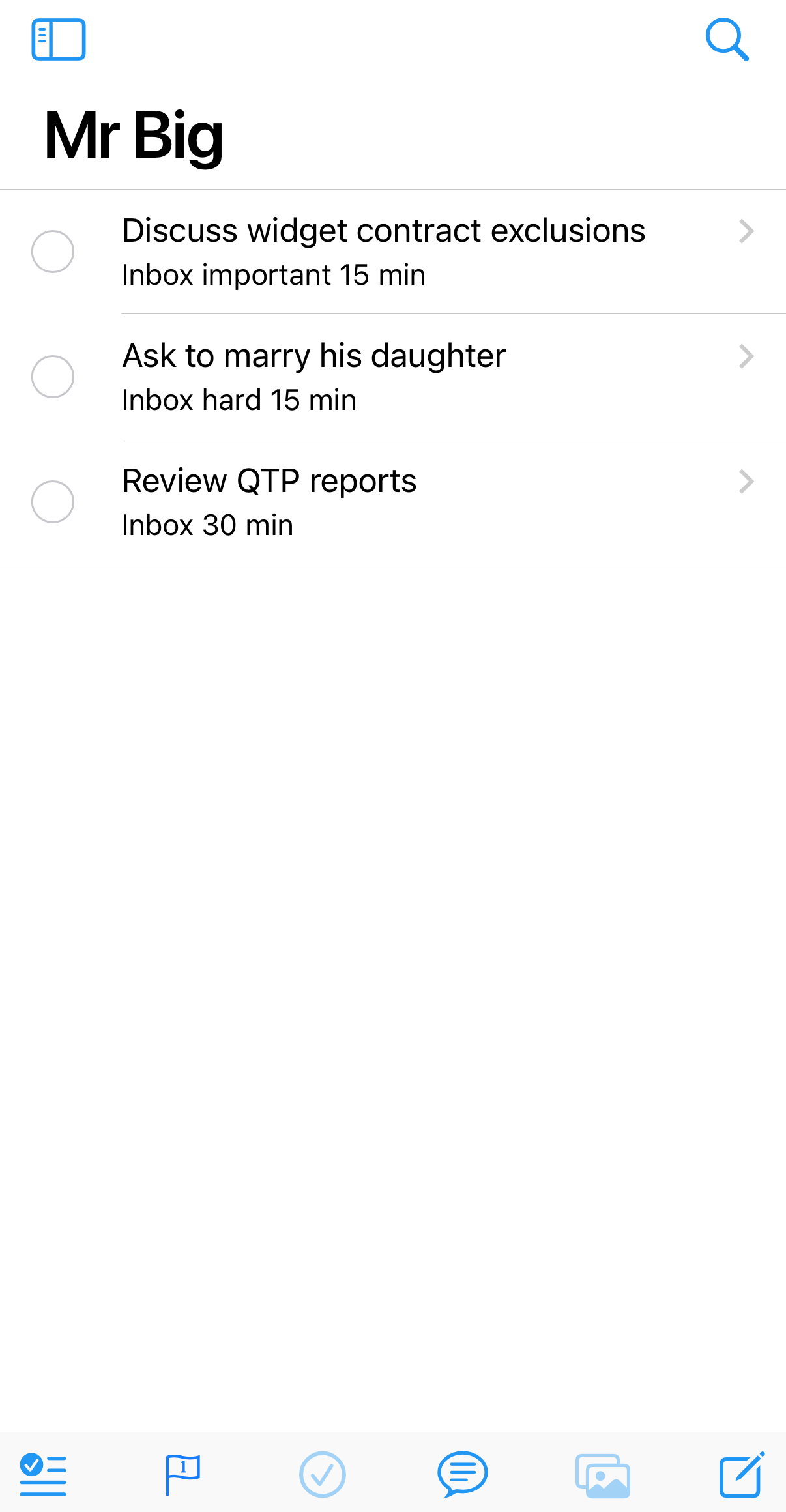
Your Mr. Big list by priority the next time you meet
If you really needed to discuss this with Mr. Big before your next scheduled meeting, you could have set a Due Date when you saved the action.
Actions that have a Due Date show up in the Alerts list on the Home screen when they are nearly due or overdue:
- Overdue items are listed at the top in red
- Items due today are listed next in yellow
- Items due in the next five days are in green
You can tap an item to see the details or edit it, or check it done right from the alerts.
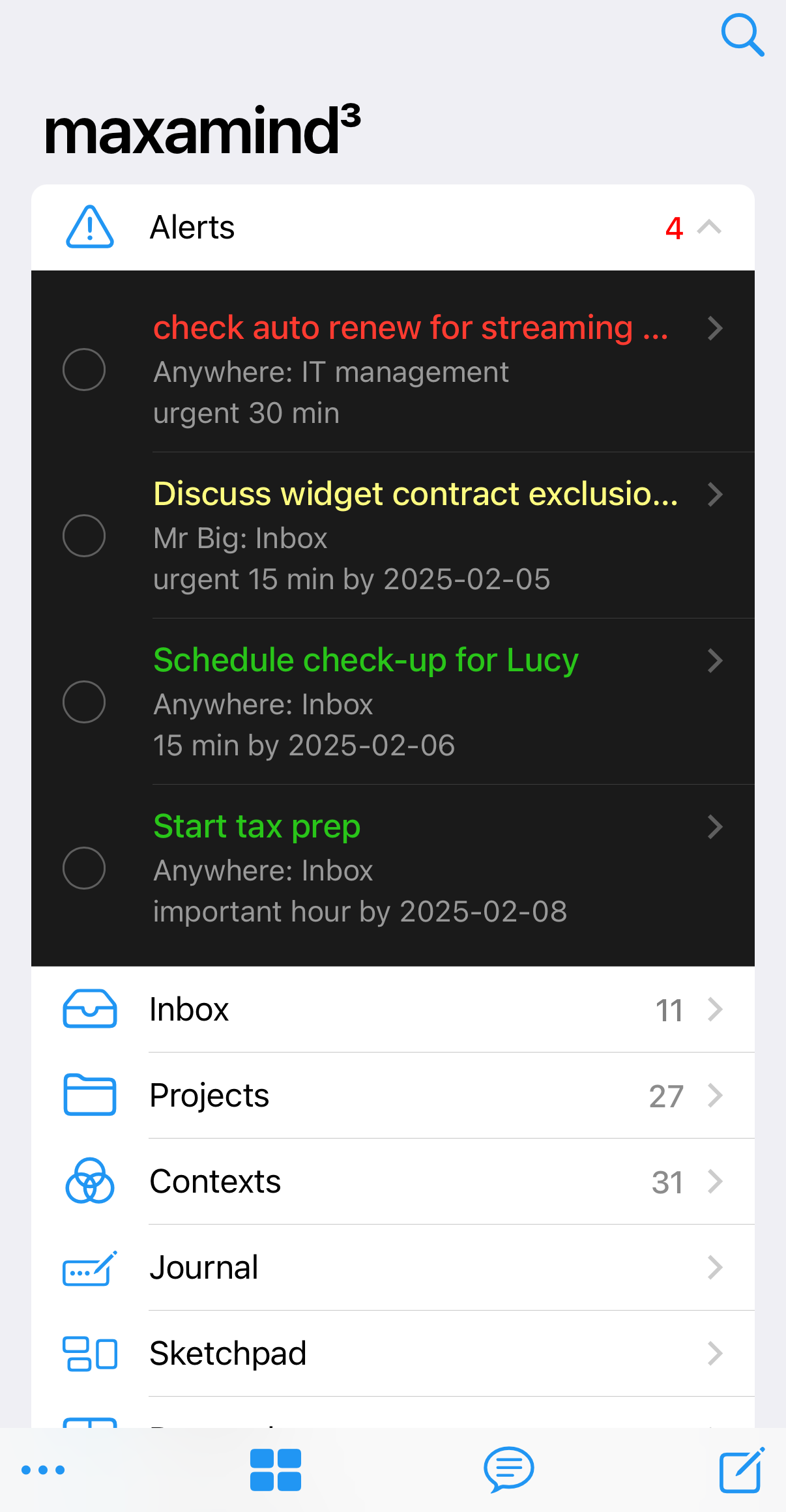
The Home screen Alerts list shows color-coded Actions
The Approach Behind maxamind
What you've just read through — capturing actions the moment they occur to you, sorting them by project and context, reviewing your lists, checking things off — has a name. It's called Getting Things Done, or GTD®, and it was developed by productivity consultant David Allen. His book, Getting Things Done, first published in 2001 and read by millions of people over two decades, lays out the full method: five steps — Collect, Process, Organize, Review, and Do — that maxamind is designed around.
Allen's insight is that most of the stress we feel about our work isn't caused by the work itself. It's caused by trying to hold everything in our heads:
- Not knowing what you're not getting done causes stress.
- Trying to remember everything you need to do causes stress.
- Writing notes on scraps of paper or lists on your device still causes stress.
- Sticking things on the calendar and then not getting to them causes stress.
Moving it all into a trusted system you can rely on — one that captures, organizes, reminds, and shows you what to do when the time comes — is what lets you relax about what you might be forgetting.
If you want to go deeper, Allen's book is the definitive source and worth reading. Some subscribers read it before they start, some read it after a few weeks of using the app, some dip into it along the way — all are good ways to learn.
Collect
Using maxamind on your phone and all your devices makes collecting a snap. It's always with you, and collecting a new item is never more than two taps away — tap to launch maxamind, if it's not already open, then tap New Action. New Actions default to the Inbox project and Anywhere context, so capture is fast when you just need to get something out of your head. On Apple devices you can skip opening the app entirely with Quick Capture from Siri, your Apple Watch, or a Lock Screen widget.
But you can do more than pure capture. Because you can set a project, context, priority, and notes in the same New Action step, Collect often blends into Process naturally. You're reading email and see a follow-up you need to make — drag it into an action, tag it with the right person's context, mark it high-priority, and save. That's Collect and Process in one motion, while the thinking is fresh.
Process
With everything collected as it happens, take some time during the day to work through anything still sitting in your inbox. Clarify what each item means. Decide if it's actionable and how. Discard the junk. Tag the rest with the right project and context so it lands where you'll find it when you need it. Quick processing keeps the inbox from becoming a pile — and because you've been processing as you collect, there's usually less sitting there than in strict GTD.
Organize
You can set the Context or Project for any Action when you add it, or change it later by tapping the Action from any list. When the Project or Context pick list is displayed, you can either choose one of the listed items or add a new one.
Here are some ideas to keep going:
- Tag items as high priority rather than using artificial due dates as a proxy for importance.
- Include Due Dates for Actions that have them, and pay attention to the Alerts that show up when they are coming due.
- Add Action items to a Project during meetings, including notes with any details for each one. If someone else is responsible for getting it done, tag the Action with that person's Context for later follow-up.
Review
Using maxamind is a proactive process. Establish a routine of regular reviews for your projects. Use the app to view your open actions and notes, create a mind map, or discuss them with the AI Assistant. Create next actions and mark things done.
Do
This is where it all pays off. Open maxamind, check your Context list for wherever you are and whoever you're with, and work through the actions there. When you've done something, check it off — it gets marked Done and disappears from view. But it's not gone; completed actions are archived and can be searched or viewed by tapping the View Checked icon checkmark_circle in the Projects, Contexts or Search panel view options menu.
Don't worry. You've got it.
Open maxamind and start capturing. Don't worry about organizing perfectly or getting every context right — just get what's on your mind into the app. You can sort and refine as you go. The goal isn't a pristine system; it's a trusted one. Every action you capture is one less thing on your mind.
Much More to maxamind
The maxamind app expands on the GTD paradigm through views and additional tools to suit your thinking and working styles.
Project and Context Views
Use the view tool at the left of the menu bar to choose how an action list is displayed. The icon changes to show the selected view, as in the list below. The app remembers your selected view and sort order on restart, so you can stick with your favorite.
| text_badge_checkmark | Checklist | A list with checkbox, action summary and selectable sort order |
| rectangle_grid_3x2 | Timeline | A now-soon-later timeline with summary and selectable sort order |
| list_bullet | Outline | A bullet list of actions with their complete notes in an outline editor and selectable sort order |
| rectangle_3_offgrid | Whiteboard | A free-form whiteboard where actions are shown and other shapes can be drawn and connected |
Journal
The Journal functions as a centralized repository for recording activities, thoughts, and notes on a daily basis. You can document events, insights, and tasks within the journal, capturing a chronological account of your daily experiences. Bullets within the journal represent various types of entries such as notes, actions, or events, providing a versatile platform for journaling and note-taking. Any actions that you add through the Inbox or Projects are automatically journaled. Attachments let you include visual information, web links and multimedia content in journal entries.
Sketchpad
The Sketchpad enables visual brainstorming and communication. By collecting actions and notes through the Search panel, you can brainstorm ideas, create visual representations of concepts, and communicate complex information effectively. The Sketchpad serves as a creative space to ideate, visualize, and collaborate on projects through dynamic visual tools and features within the app.
Datapad
The Datapad provides a simple yet powerful platform for data collection and spreadsheet functions. You can input and organize data in a tabular format, facilitating data management and analysis within the app. Whether tracking numerical information, creating spreadsheets, tracking expenses or managing project data sets, the Datapad is a versatile tool for handling data-related tasks efficiently. With intuitive functions and formatting options, you can leverage the Datapad for various data-driven activities.
Reference Library
Use the Pocket Reference Library for storing important documents, images, and references that are always with you. You can attach various file types, including images, PDFs, text, and markdown, for quick and easy access within the app. Maybe some handy recipes, charts important to your work, subway maps or travel docs.
Claude AI Assistant
maxamind includes a built-in AI Assistant powered by Claude, Anthropic's AI model. The Assistant is included with every maxamind subscription — no API keys or technical setup required.
What can the AI Assistant do?
The Assistant has full context of your current view — your tasks, projects, contexts, and sketches — so you can have a natural conversation about your work. For example:
- "What should I focus on this afternoon?"
- "Give me a day plan for tomorrow"
- "Suggest some next actions for my product launch project"
- "In this sketch, suggest some additional topics I haven't considered"
- "Help me break up this task into more manageable pieces"
- "Write a draft from the outline in this action"
The Assistant can also create new actions and sketch nodes directly from the conversation. If you ask it to suggest tasks or ideas, just review the suggestions and confirm to add them automatically.
The Assistant is also there to help you learn and develop your skills with maxamind. Ask questions about the app or the process — it's read the docs, too!
Using the AI Assistant
Tap the chat bubble icon on any page to open the Assistant. The contents of your current view are automatically shared with the Assistant so it has the context it needs to give you relevant, personalized responses. Ask anything, or tap the quote_bubble button for some ready-made queries.
Privacy
The AI Assistant is powered by Anthropic's Claude API. Conversations are processed securely via Anthropic's API and are subject to their privacy policy. maxamind does not include any personally identifiable information in API calls other than the optional background information you provide in Settings. Your tasks, projects, and notes are sent as context to support your conversation but are not stored or used for training by Anthropic.
Quick Capture from Siri, Apple Watch, and the Lock Screen
On Apple devices, you can add actions to your Inbox without opening maxamind. Say it to Siri — even with your phone locked — speak it to your Apple Watch, or tap a widget on your Home Screen or Lock Screen. The action lands in your Inbox with the Anywhere context, ready to process.
Set it up (about a minute)
- In maxamind, open Settings → Quick Capture and choose Generate token. You can keep the default label, "Personal Apple Devices," or enter your own.
- Copy the token right away. For security it's shown only once and can't be displayed again.
- Tap the install link. The Shortcuts app opens with the "Add a maxamind action" shortcut. Add it, and paste your token when the shortcut asks for it.
That's all. iCloud syncs your shortcuts, so this one setup carries to every device signed in to the same Apple ID — iPhone, iPad, Apple Watch, and Mac.
Using it
- Siri: say the shortcut's name, then say your action when Siri asks. This works with your phone locked.
- Apple Watch: raise your wrist and speak to Siri the same way.
- One tap: add the shortcut as a Home Screen or Lock Screen widget, to Control Center, or to the Action Button or Back Tap through your device settings.
- Share Sheet: in another app, tap Share and choose the shortcut to send what you're looking at straight to your Inbox.
The shortcut reads back what it saved, so you can catch a dictation mistake on the spot. Everything arrives as an action; if something turns out to be a note rather than a task, convert it when you process your Inbox.
Tip: Siri finds shortcuts by name, and names can collide with other apps. If Siri opens something else, or "Add a maxamind action" isn't what you'll naturally say, rename the shortcut in the Shortcuts app to anything you like.
Managing your token
Your tokens are listed in Settings → Quick Capture. Revoke one there to stop all captures that use it immediately. To replace a token, generate a new one and paste it into the shortcut once — every synced device picks up the change.
Good to know
- Quick Capture needs a network connection. The maxamind app works offline, but the shortcut sends your action over the network. If a capture can't get through, Siri tells you — nothing is silently lost.
- Encryption at rest: Quick Capture works with encryption enabled. Captured text reaches the server unencrypted, stored against a hashed token (not your name or email), and stays there only until one of your devices next syncs — at which point it becomes an encrypted action and the server copy is deleted. For anything more sensitive than that, type it into the app instead.
- Android: Quick Capture isn't available on Android yet.